
Security is a vital part of every system and infrastructure. The term “security” comes from the Latin word securitas, which combines se- (meaning “without”) and cura (meaning “care” or “worry”). Originally, it meant “without worry,” and today it refers to keeping your data, apps, and systems safe from harm or threats.
Whether at home, online, using banking apps, or across an entire organisation, security matters in everything we do. Cloud platforms, such as AWS, are no exception; they require robust measures to protect users and maintain trust.
On AWS, security is a shared responsibility. This means that both AWS and you, as the user, play a crucial role in keeping your data and applications secure.
Amazon Web Services (AWS) is one of the most widely used cloud providers in the world. With its power and flexibility comes the responsibility to secure your infrastructure, data, and apps.
In this guide, we’ll cover the fundamentals of AWS security, focusing on the areas that are your responsibility, so it’s easy to understand even if you’re new to cloud computing.
Cloud security is the set of rules, tools, and practices used to protect your data, apps, and services stored online (in the “cloud”). It helps prevent data loss, hacking, and misuse of information.
Think of cloud security like locking the doors of your house. You wouldn’t leave your doors open for anyone to enter. And in the same way, your cloud account must be secured so that your data remains safe.
If your cloud services aren’t secure, hackers could steal your data or cause major damage. Whether you’re a business or just someone using cloud apps, keeping your information safe is essential.
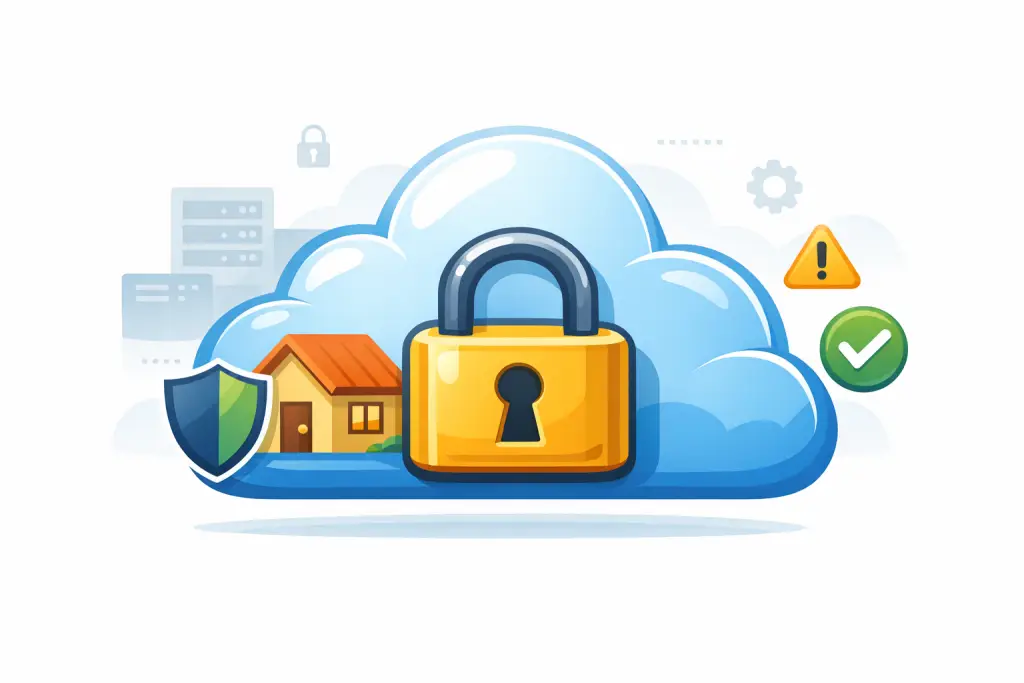
Cloud security is crucial because it makes sure that only the right people can access your data. Without it, your information could be lost, stolen, or misused. Proper security keeps your apps running smoothly and shields them from attacks.
It also protects your privacy, whether it’s personal projects or business data. A well-secured cloud environment lowers the chances of data breaches and financial loss.
💡 Quick Tip: Treat your cloud account like a digital safe. Regularly check who has access and remove anyone who no longer needs it.
Example: Imagine a company stores customer information in S3. If permissions aren’t set correctly, anyone could see or delete sensitive files. Cloud security ensures that only authorised users can access this data.
In AWS, security isn’t just AWS’s job; it’s a partnership between AWS and you. This approach is known as the Shared Responsibility Model.
AWS is responsible for keeping the cloud infrastructure safe, including servers, networks, and data centres. You, on the other hand, are responsible for protecting your account, your data, and how your applications are set up.
💡 Quick Tip: Think of it like renting an apartment. The building owner secures the property, but you still lock your doors, set up alarms, and watch over your own belongings.
Let’s discuss some key security concepts that are your responsibility.
What is a root user?
When you first create an AWS account, the very first identity created is called the Root User. This account has complete control over everything in your AWS environment—it can delete resources, change ownership, or even close your entire account. Because of its power, using the root user for everyday tasks is risky.
AWS recommends using the root user only for a few critical account-level actions, such as
- Updating billing and payment details
- Closing your AWS account
- Changing the root account email
- Resetting or recovering MFA for the root user
💡 Quick Tip: Your root account should be treated like a master key. Keep it locked away and only use it when necessary. For daily tasks, always create and use IAM users instead.
How to Create an IAM User for Daily Tasks
Before you start creating any infrastructure in your AWS account, you need an IAM user with the right permissions.
Here’s how to create an IAM user, step by step:
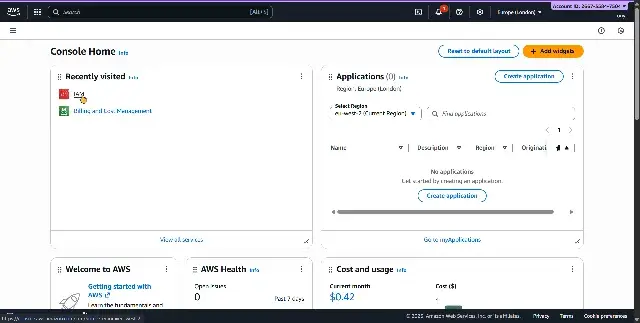
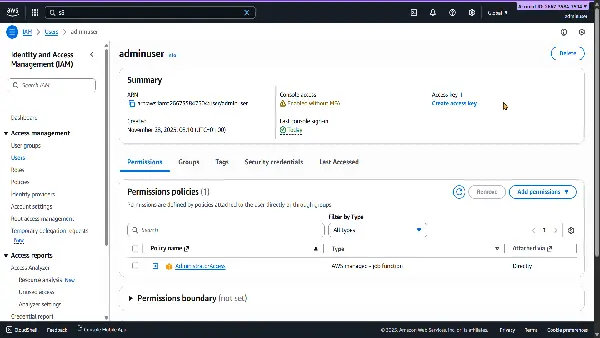
- Open the AWS console.
- Search for IAM, then select it. This takes you to the IAM page.
- On the left-hand side, you will see Users.
- Click on it. This takes you to the Create user page.
- Click the Create user button. It takes you to the “specify user details page,” where you will create an IAM user.
- Enter a username.
- Click on “Provide user access to the AWS Management Console.”
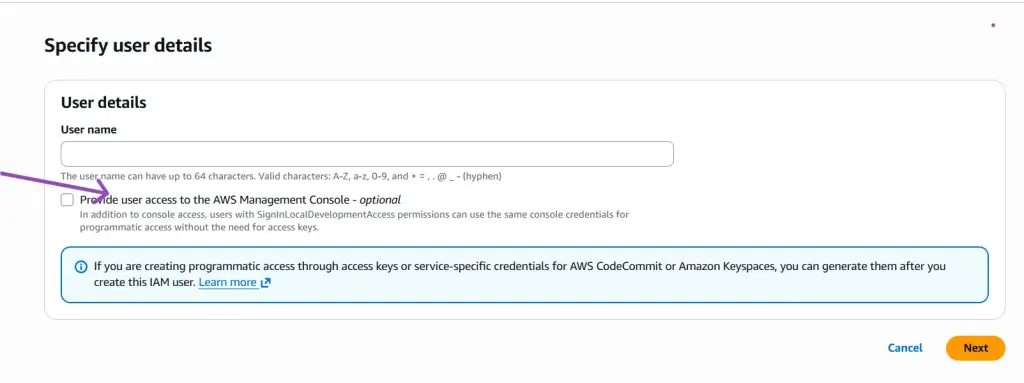
- Scroll down and click on “Set a password,” or let AWS generate one for you.
- Click Next to go to the permissions page.
- Select Attach existing policies directly.
- Choose
AdministratorAccess. This permission gives the IAM user full access to perform all administrative tasks in your account. - Click Create user.
Once you’ve created this user, sign in with it and use it for your day-to-day tasks. The root user should stay locked down and only be used for rare account-level changes.
Video Walkthrough of How to Create an IAM User:
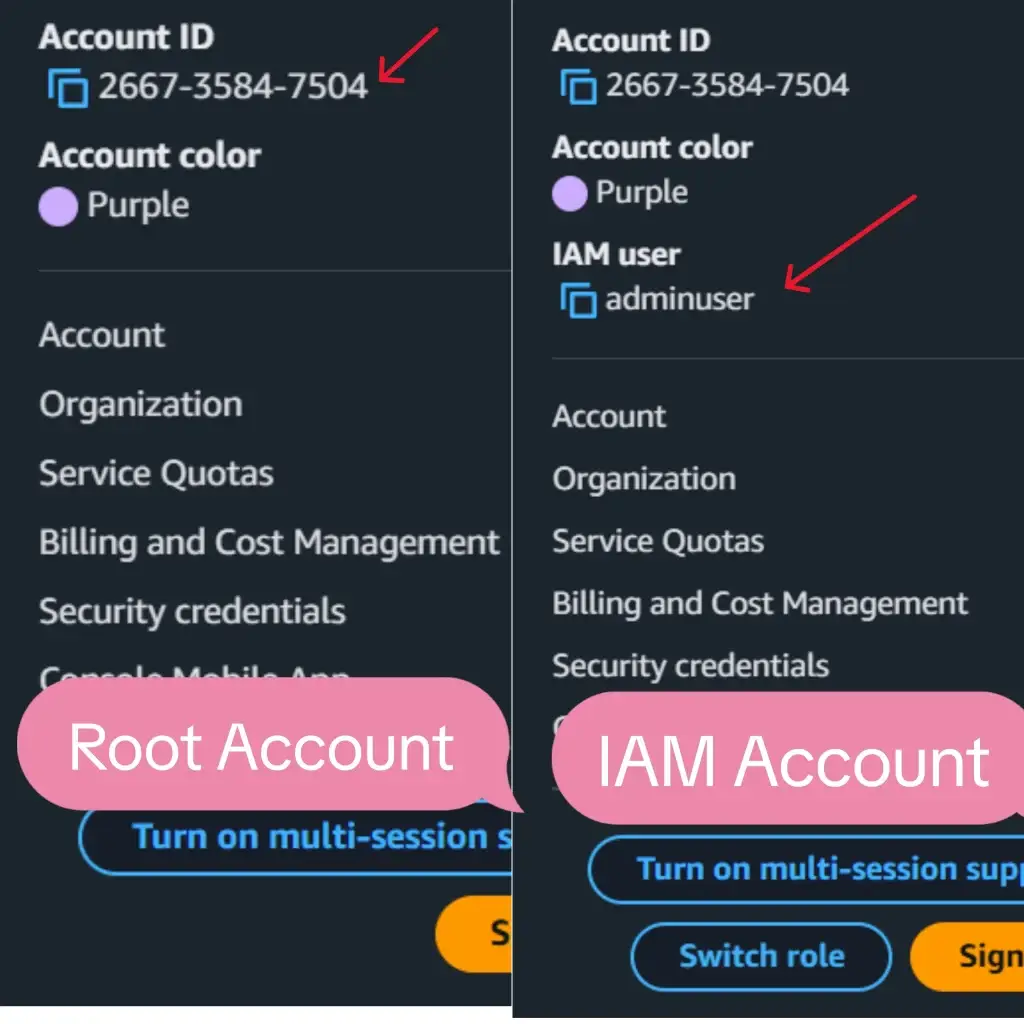
Difference between the root user and IAM user
To avoid confusion, let’s break down how the root user and IAM users are different and when each should be used.
This table shows why the root account should be protected and why IAM users are safer for daily work.
| Feature | Root User | IAM User |
|---|---|---|
| When it is created | Created automatically when you open an AWS account | Created by you inside the AWS account |
| Level of access | For important account-level actions only | Access depends on the permissions you assign |
| Main purpose | Billing changes, account recovery, and closing the account | For everyday work in AWS |
| Typical tasks | The entire account is at risk | Managing resources, deploying apps, daily operations |
| Safety level | Very risky if misused | Much safer and more controlled |
| If credentials are compromised | Managing resources, deploying apps, and daily operations | Damage is limited based on permissions |
| Recommended usage | Rarely use | Use daily |
Quick takeaway:
The root user is powerful and should be protected. IAM users are safer and meant for daily use.
Here’s a helpful visual to show the differences between the two as well:
Once your root account and IAM users are in place, the next step is to strengthen access to your AWS account. This is where multi-factor authentication, or MFA, comes in.
Understanding MFA
MFA adds an extra checkpoint when you log in. Instead of depending only on a password, AWS asks for a second form of verification. This is usually a short code generated by a device you own. Even if someone discovers your password, they still cannot access your account without this second step.
You can think of MFA as a second lock on your account. The password opens the door, but the code confirms it is really you.
Ways to enable MFA in AWS
AWS supports several MFA options, so you can choose what works best for you:
- A virtual MFA app like Google Authenticator or Authy on your phone
- A physical security key, such as a YubiKey
- A hardware MFA device provided by Gemalto
- For AWS GovCloud users, an MFA device from SurePassID
Why you should enable MFA
MFA greatly reduces the risk of unauthorized access. Even if login details are exposed, your account remains protected because the second verification step is required.
For a simple action, MFA delivers strong protection. It is one of the most effective security steps you can take on your AWS account and should always be enabled for both root and IAM users.
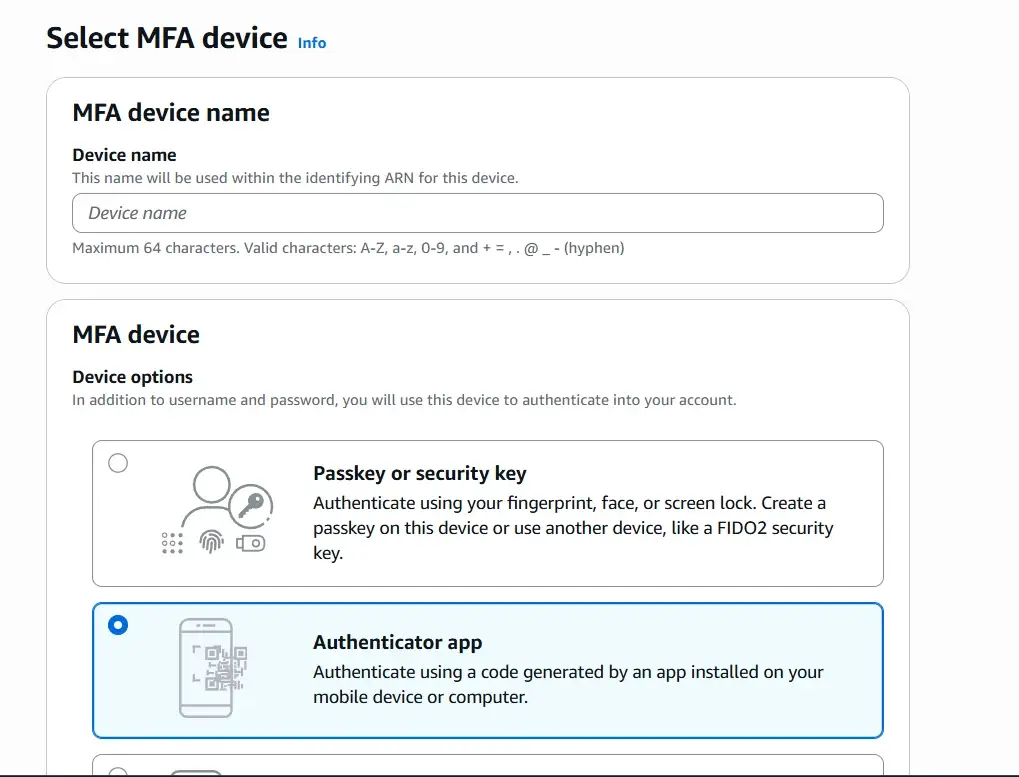
For this tutorial, we will use the Google Authenticator app. It is free to download and available on the Play Store, making it an easy and accessible option to get started.
How do I turn this on for my account?
- To turn on MFA for your AWS account, start by signing in to the AWS Management Console.
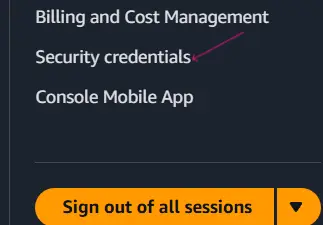
- Once you are logged in, look at the top right corner of the page and click on your account name or account ID. This will open a drop-down menu.
- From the menu, select Security Credentials. You will be taken to the IAM Security Credentials page, where you can manage important security settings for your account.
- At the top of the page, you will see a button labeled Assign MFA device. Click on it to continue.
- You will be taken to a new page where AWS asks you to choose the type of MFA device you want to use. Scroll down the list and select Virtual MFA device. This option works with apps like Google Authenticator and is the one we will use for this tutorial.
Next, follow the on-screen instructions to complete the setup:
- Open the Google Authenticator app on your phone.
- Tap the + button and scan the QR code shown on the AWS screen.
- Enter the two verification codes generated by the app to confirm your device.
Once the verification is complete, AWS will link the MFA device to your account and return you to the Security Credentials page. If you scroll down, you’ll see your MFA device listed as assigned.
From now on, whenever you log in to AWS, you’ll be asked to enter the MFA code from the Google Authenticator app before you can access your console.
Now that you’ve got a handle on the key security practices, let’s revisit the AWS Shared Responsibility Model.
Understanding the AWS Shared Responsibility Model
AWS divides security duties between itself and the customer to make sure the cloud stays safe.
1. AWS’s Responsibility – Security of the Cloud
AWS is in charge of protecting the underlying infrastructure that powers its services. This includes the physical data centres, servers, networking, software, and other hardware components.
2. Customer’s Responsibility – Security in the Cloud
You, the customer, are responsible for securing your own data, user accounts, applications, and for how you configure and manage resources in your cloud environment.
In short, AWS keeps the cloud safe, while you keep your account and resources safe.
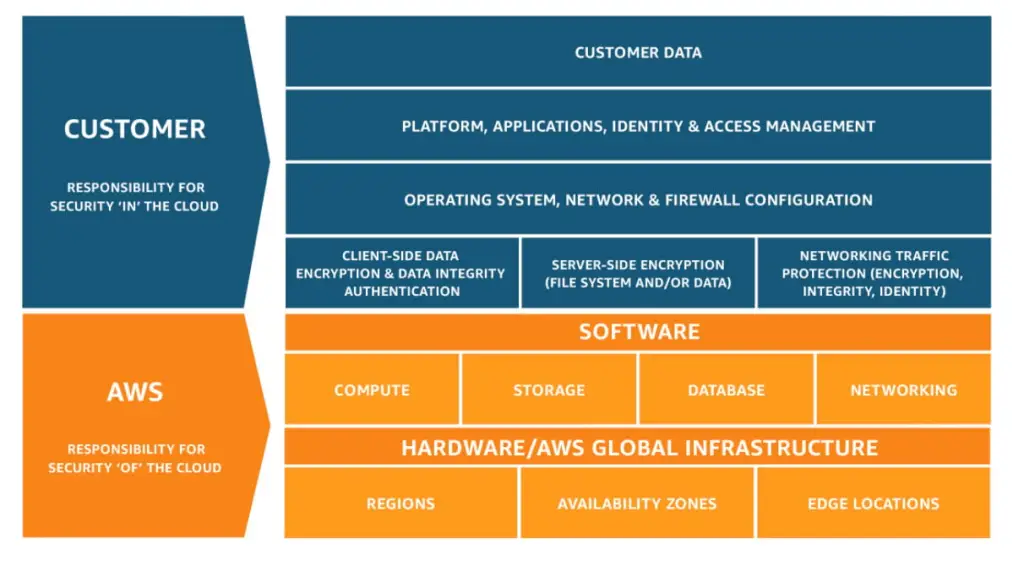
Image source: AWS shared responsibility model
For example, AWS is responsible for securing its data centers and servers. But you also play a part by setting up and managing your own accounts and resources properly.
Let’s look at two popular services to make this clearer: RDS (Relational Database Service) and S3 (Simple Storage Service).
RDS (Relational Database Service)
- AWS handles things like automatically patching the database, maintaining the underlying servers and storage, and keeping the operating system updated.
- You, as the customer, manage in-database users, roles, and permissions and decide if the database should be public or private, review inbound rules and ports, and configure encryption settings.
S3 (Simple Storage Service)
- AWS provides encryption options, guarantees storage availability, prevents unauthorized access, and keeps each customer’s data separate.
- Your responsibility is to define bucket policies, check bucket settings, and manage IAM users and roles with the right permissions.
By looking at these examples, it’s clear who handles what. AWS protects the cloud itself, while you make sure your data, accounts, and applications stay secure inside the cloud.
How to Give a User Permission
Cloud security isn’t only about strong passwords or MFA. It’s also about controlling who can access what. One of the most important rules in AWS security is to give users only the permissions they actually need—no more, no less. This approach keeps your environment safe and your resources protected.
So, how do you decide who should be allowed access and who shouldn’t? That’s what we’ll cover next.
Demonstration: Giving a User Access
Let’s look at a simple, real-life example.
Suppose you have a developer who needs access to an S3 bucket called demo-test-app-ij. The goal is to let them upload and view files, but not delete anything.
We’ll use the IAM user we created earlier. If you haven’t created one yet, follow the steps in the previous section first.
- Go to IAM in your AWS Management Console, then click Users from the left-hand menu.
- Select the user you want to manage.
- On the Permissions page, click Add permissions.
- From the dropdown, choose Create inline policy. This opens the Specify permissions page, where you can define exactly what the user can do.
- Scroll through the services and select S3—we’re focusing on this bucket for our example.
From here, you’ll set the actions and resources so the user has just the access they need.
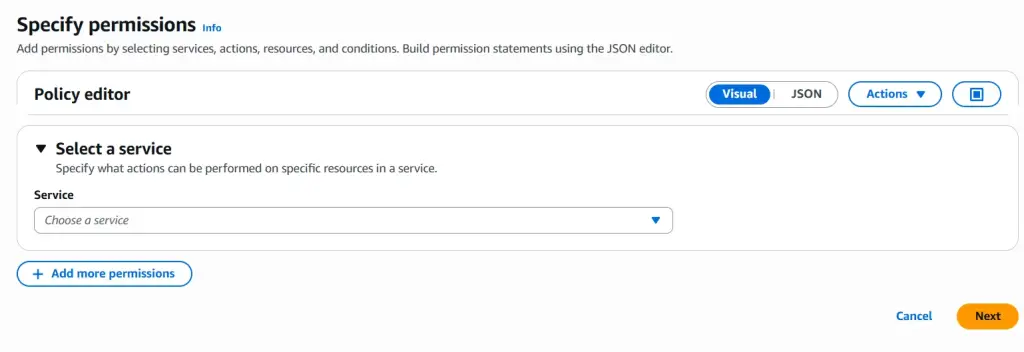
Once you’ve selected the service, the Actions and Resources sections will appear automatically.
In the Actions section, you’ll see a list of what the user can do with the service. You can toggle each action to either Allow or Deny.
For our example, scroll through the list and find DeleteObject. Set this action to Deny: DeleteObject. This ensures the user can upload and view files, but cannot delete anything from the bucket.
Next, go to the Resources section. Here, you’ll specify which bucket these permissions apply to.
Add this bucket ARN:
arn:aws:s3:::demo-test-app-ij/*
This rule applies to everything inside the demo-test-app-ij bucket.
After adding the ARN and confirming your settings, click Save policy.
Now you have a working example of how to give a user precise permissions while keeping your data safe.
Testing the Policy Permission
Now it’s time to make sure our permissions are working as intended.
Go to the S3 service and open the bucket named demo-test-app-ij. First, try uploading a file—it should upload without any issues. Next, try deleting that same file. You should see an error message saying Failed to delete objects.
This is exactly what we want. The user can upload and view files, but cannot delete them, because we specifically denied delete permissions.

Conclusion
Security is about feeling confident that your data is safe. Whether it is your personal devices, your home, or your cloud account, peace of mind comes from knowing the right protections are in place.
AWS takes care of securing the cloud infrastructure, but your role is just as critical. Simple steps like turning on MFA, creating strong passwords, and carefully controlling who can access your resources make a big difference in keeping your environment secure.
Cloud security is not a “set it and forget it” task. It is a continuous effort. When AWS and its users both stay proactive, the cloud becomes a reliable and safe place to store data, run applications, and grow your projects.
Now that you have a solid grasp of AWS security basics, you are ready to explore more services and put these practices into action.
Further Reading
- What is Cloud Computing? A Guide for Beginners
- How to Deploy a Kubernetes App on AWS EKS
- The Best AWS Services to Deploy Front-End Applications in 2025
- What is Backend as a Service (BaaS)? A Beginner’s Guide
- The Hidden Challenges of Building with AWS
If you found this article helpful, feel free to share it. And if you prefer learning through videos, I also explain cloud topics in simple terms on my YouTube channel.
Stay updated with my projects by following me on Twitter, LinkedIn and GitHub.
Thank you for reading!